
How to configure print server settings
You can update print server settings from the X3 Cloud Partner Portal to adjust print server behavior for a deployment.
Use this configuration screen when you need to:
-
increase or limit print server capacity,
-
adjust retention values,
-
enable and configure activity logging.
These settings are available for both production and non‑production deployments.
Before you start
There are two requirements to update print server settings on a deployment:
-
the deployment must be awake
-
no operation is currently running on the deployment.
If the deployment is hibernated, or if an operation is already in progress, the portal blocks the update and displays a message asking you to wake up the deployment before changing the configuration.
Open the print server configuration screen
-
Open the deployment in the X3 Cloud Partner Portal.
-
Select the Configuration tab.
-
Go to the Print Server Settings section.
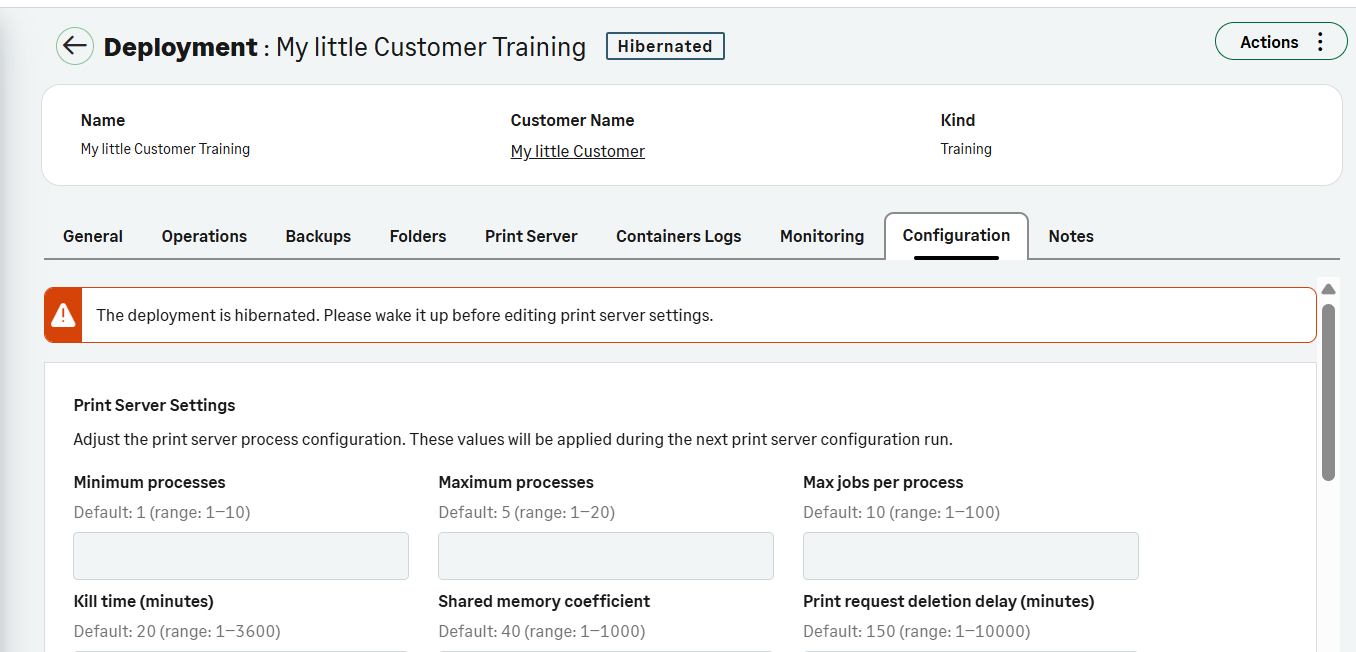
This section lets you override the default print server values for the selected deployment.
Update the print server settings
Enter the values you want to override in the available fields.
For each setting, the portal displays:
-
the default value
-
the allowed range directly on screen
Available settings
You can configure the following parameters:
-
Minimum processes
-
Maximum processes
-
Maximum jobs per process
-
Kill time (minutes)
-
Shared memory coefficient
-
Print request deletion delay (minutes)
-
Successful job status retention (minutes)
-
Failed job status retention (minutes)
-
Server activity log
-
Maximum activity log file size (bytes)
-
Number of activity log files
Apply the changes
Applying changes to the print server settings requires a print server restart, which causes a temporary service interruption.
-
Select Apply in the Print Server Settings section.
-
A warning window open. Select Confirm.
Restart the print server
After saving the changes, the portal asks whether you want to restart the print server immediately.
Choose:
-
Yes to apply the new settings right away.
-
No to postpone the restart and apply the changes later.
What happens behind the scenes
The values you define in the portal are stored as deployment‑specific configuration overrides.
When the print server configuration is generated:
-
the system uses the override values defined for the deployment
-
the system falls back to the default platform values when no override is defined
This ensures that:
-
only the settings you explicitly change differ from the default configuration
-
all other settings continue to use standard platform values.
Tips
-
Review the displayed allowed ranges before applying a value.
-
Use an immediate restart only when a short service interruption is acceptable.
-
When you troubleshoot print activity, enable the activity log and adjust log size and retention according to your needs.